Affiliate Program
 Affiliate Banners
 Blog
Blog Global - $ (USD)
 Live Chat
 +91-982-443-9959
 Customer Login
Hey Guys,
Before we begin to install this plugin, let's first understand what is this plugin all about and how it will help us.
Attracta is the world’s most popular SEO company. It is award-winning SEO service provider and helped thousands of small businesses to improve their search engine ranking and drive more traffic to their sites. They are the trusted by every major web host, including HostNamaste :) – and they help your websites rank higher, too!
Now, let's begin to follow the steps on how we can install Attracta SEO tools and setting them up through a cPanel/WHM server.
If you are the registered hosting partner of Attractas Hosting Partner program, you can follow their official guide HERE, but if you are not and wants to install this plugin FREELY you can use the below commands straight:
wget -N https://cdn.attracta.com/static/download/Attracta-SEO-cPanel-Stable.sea
chmod +x Attracta-SEO-cPanel-Stable.sea
./Attracta-SEO-cPanel-Stable.sea
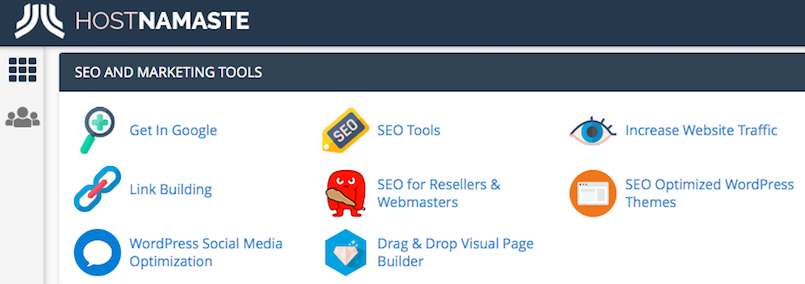
Once it has been installed, you will find the plugin from your cPanel > SEO AND MARKETING TOOLS.
NOTE: This Knowledgebase is for the VPS / Dedicated server clients only. If you are using our cPanel shared hosting or WHM reseller hosting (We have already installed it on our severs for our clients), you will find the "SEO AND MARKETING TOOLS" Block from cPanel to use directly without following our above mentioned installation steps.
Kind regards,
- HostNamaste